Scan to join WeChat group
Google Photos

Access Google Photos via the Google Photos Library API with managed OAuth authentication. Upload media, search photos, create and manage albums, and update media items.
This skill uses ClawLink for hosted connection flows and credentials so you do not need to configure Google Photos API access yourself.
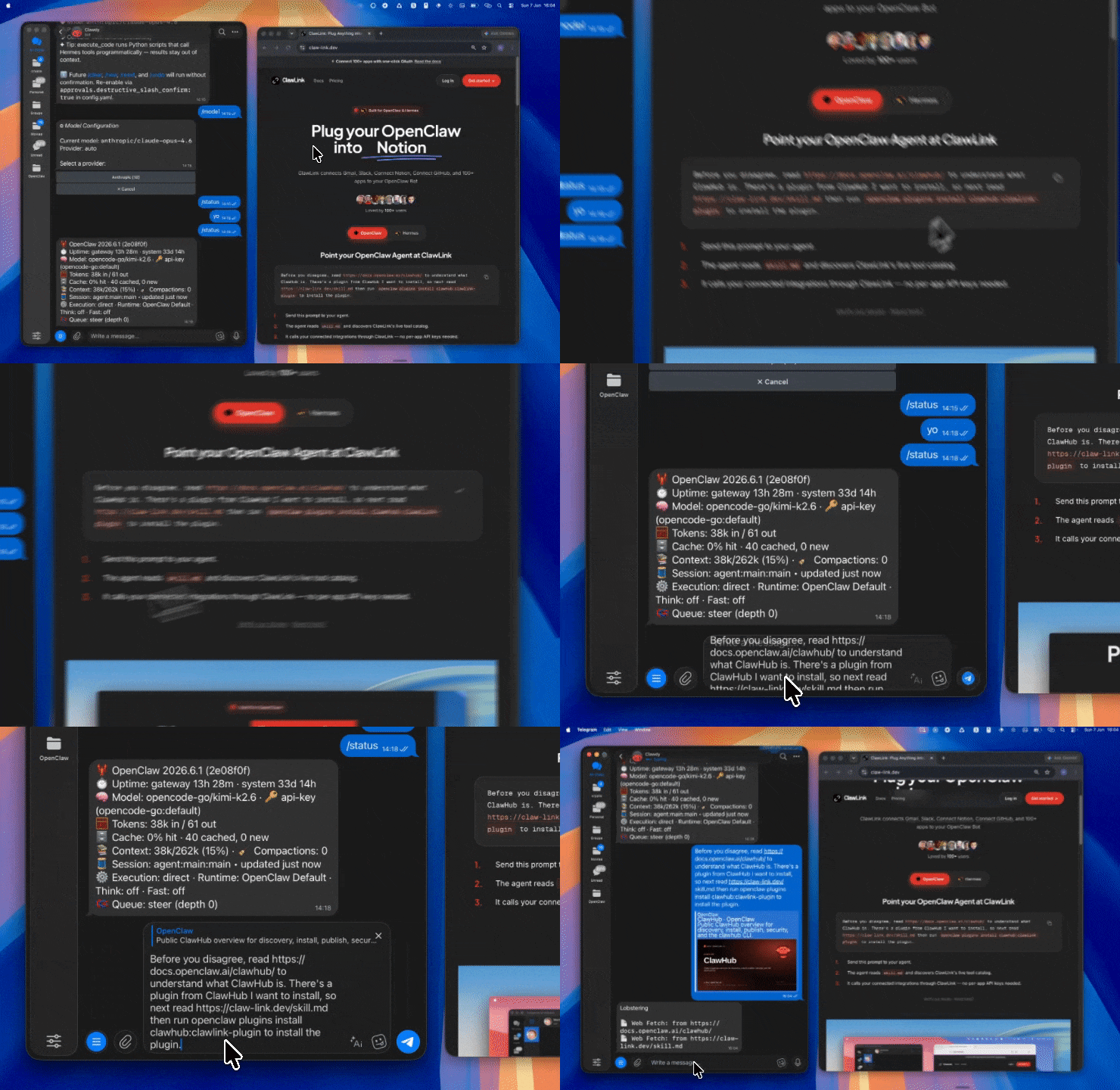
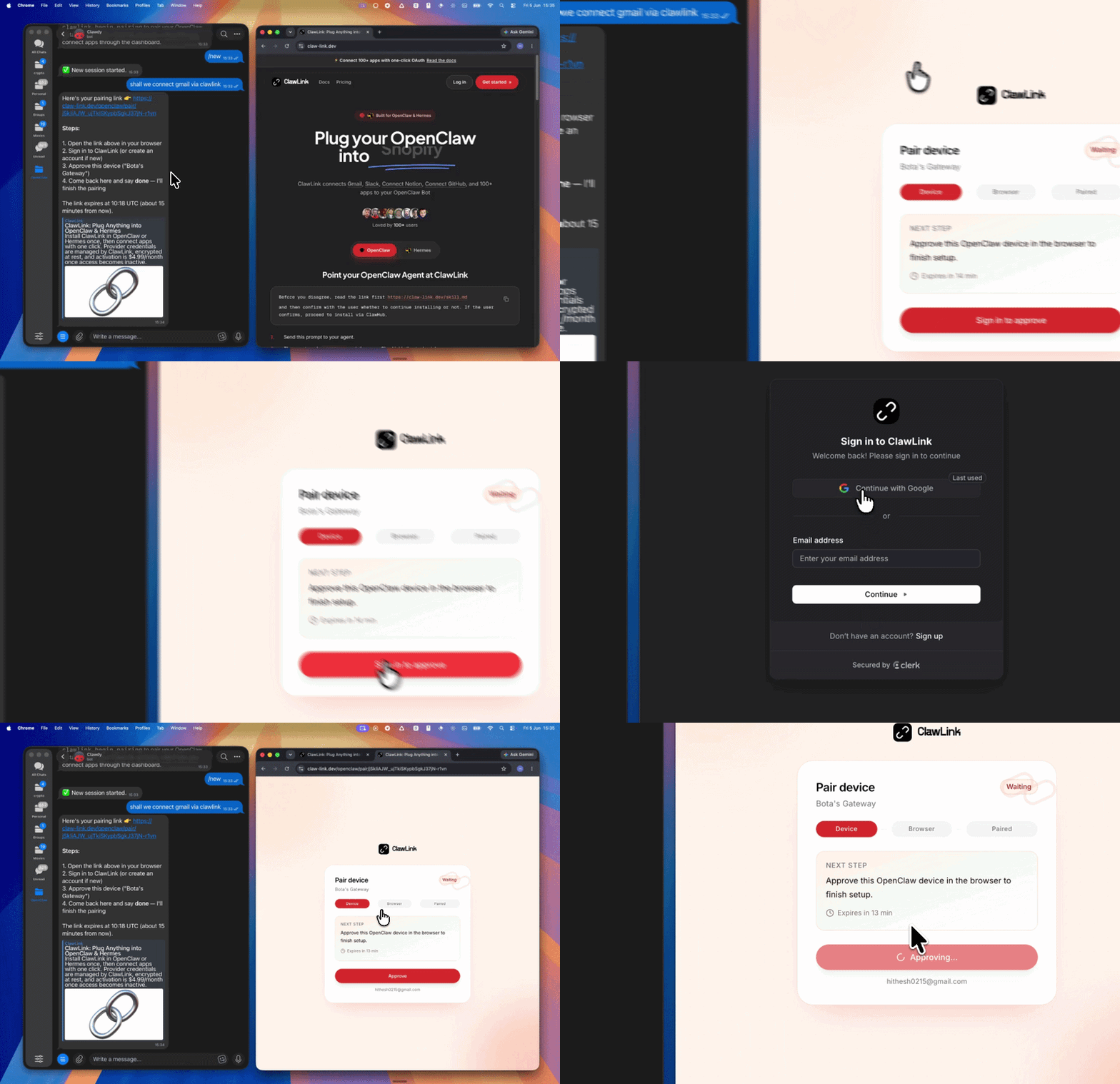
Setup in 3 Steps
| Step 1: Install | Step 2: Pair Account | Step 3: Connect Google Photos |
|:---:|:---:|:---:|
|  |
|  | App-specific connection GIF coming soon |
| Run the install command in OpenClaw | Sign in and approve the device | Open the dashboard and connect Google Photos |
| App-specific connection GIF coming soon |
| Run the install command in OpenClaw | Sign in and approve the device | Open the dashboard and connect Google Photos |
How It Works
┌─────────────────┐     ┌──────────────┐     ┌──────────────────┐
│   OpenClaw      │────▶│   ClawLink   │────▶│   Google Photos  │
│   (User Chat)   │     │   (OAuth)    │     │   (Photos API)   │
└─────────────────┘     └──────────────┘     └──────────────────┘
         │                       │                       │
         │  1. Install Plugin    │                       │
         │  2. Pair Device       │                       │
         │  3. Connect Photos    │                       │
         │                       │  4. Secure Token       │
         │                       │  5. Proxy Requests    │
         │                       │                       │
         ▼                       ▼                       ▼
   ┌──────────┐           ┌──────────┐           ┌──────────┐
   │  SKILL   │           │ Dashboard│           │  Google  │
   │  File    │           │ Auth     │           │  Photos  │
   └──────────┘           └──────────┘           └──────────┘
Install
Install the verified ClawLink plugin from ClawHub. After the user confirms, complete the full setup so ClawLink tools are visible in the next OpenClaw chat.
openclaw plugins install clawhub:clawlink-plugin
openclaw config set tools.alsoAllow '["clawlink-plugin"]' --strict-json
openclaw gateway restart
Then tell the user: "OpenClaw has been restarted. Send /new as a standalone message to start a fresh chat, then ask for Google Photos again."
Quick Start
# List albums
clawlink_call_tool --tool "googlephotos_list_albums" --params '{}'

# List media items
clawlink_call_tool --tool "googlephotos_list_media_items" --params '{"page_size": 50}'

# Create an album
clawlink_call_tool --tool "googlephotos_create_album" --params '{"album_title": "Vacation Photos"}'
Authentication
All Google Photos tool calls are authenticated automatically by ClawLink using the user's connected Google account.
No API key is required in chat. ClawLink stores the OAuth token securely and injects it into every Google Photos API request on the user's behalf.
Getting Connected
- Install the ClawLink plugin (see Install above).
- Pair the plugin with
clawlink_begin_pairingif it is not configured yet. - Open https://claw-link.dev/dashboard?add=googlephotos and connect Google Photos.
- Call
clawlink_list_integrationsto verify the connection is active.
Connection Management
List Connections
clawlink_list_integrations
Response: Returns all connected integrations. Look for googlephotos in the list.
Verify Connection
clawlink_list_tools --integration googlephotos
Response: Returns the live tool catalog for Google Photos.
Reconnect
If Google Photos tools are missing or the connection shows an error:
- Direct the user to https://claw-link.dev/dashboard?add=googlephotos
- After they confirm, call
clawlink_list_integrationsto verify - Then call
clawlink_list_tools --integration googlephotos
Security & Permissions
- Access is scoped to media items and albums within the connected Google Photos account.
- All write operations require explicit user confirmation. Before executing any create, update, or delete call, confirm the target resource and intended effect with the user.
- Uploads and album changes must always be confirmed by the user.
Important API Limitation
As of March 31, 2025, the Google Photos Library API only returns media items that were uploaded or created by this application. It cannot access photos taken by the user's camera or uploaded from other apps. For accessing the user's full photo library, use the Google Photos Picker API instead.
Tool Reference
Album Management
| Tool | Description | Mode |
|------|-------------|------|
| googlephotos_list_albums | List all albums shown in the user's Albums tab | Read |
| googlephotos_get_album | Get a specific album by its ID | Read |
| googlephotos_create_album | Create a new album with a title | Write |
| googlephotos_update_album | Update an album's title or cover photo | Write |
Media Item Operations
| Tool | Description | Mode |
|------|-------------|------|
| googlephotos_list_media_items | List media items created by this application | Read |
| googlephotos_search_media_items | Search media items in the user's library | Read |
| googlephotos_batch_get_media_items | Get specific media items by their IDs | Read |
| googlephotos_get_media_item_download | Download a media item as a file | Read |
| googlephotos_update_media_item | Update a media item's description | Write |
Upload Operations
| Tool | Description | Mode |
|------|-------------|------|
| googlephotos_upload_media | Upload an image (up to 200MB) or video (up to 20GB) | Write |
| googlephotos_batch_create_media_items | Batch upload and create media items (up to 50 per request) | Write |
Album Content Management
| Tool | Description | Mode |
|------|-------------|------|
| googlephotos_batch_add_media_items | Add existing media items to an album | Write |
| googlephotos_add_enrichment | Add an enrichment (text, location, etc.) at a position in an album | Write |
Code Examples
List all albums
clawlink_call_tool --tool "googlephotos_list_albums" \
  --params '{
    "page_size": 50
  }'
List media items
clawlink_call_tool --tool "googlephotos_list_media_items" \
  --params '{
    "page_size": 100
  }'
Create an album
clawlink_call_tool --tool "googlephotos_create_album" \
  --params '{
    "album_title": "Summer Vacation 2024"
  }'
Batch upload media items from URLs
clawlink_call_tool --tool "googlephotos_batch_create_media_items" \
  --params '{
    "album_id": "YOUR_ALBUM_ID",
    "media_files": [
      {"url": "https://example.com/photo1.jpg", "file_name": "beach_sunset.jpg", "description": "Beautiful sunset at the beach"},
      {"url": "https://example.com/photo2.jpg", "file_name": "mountain_view.jpg", "description": "View from the mountain top"}
    ]
  }'
Add media items to an album
clawlink_call_tool --tool "googlephotos_batch_add_media_items" \
  --params '{
    "album_id": "YOUR_ALBUM_ID",
    "media_item_ids": ["MEDIA_ITEM_ID_1", "MEDIA_ITEM_ID_2"]
  }'
Update a media item description
clawlink_call_tool --tool "googlephotos_update_media_item" \
  --params '{
    "media_item_id": "YOUR_MEDIA_ITEM_ID",
    "description": "Updated description for this photo"
  }'
Discovery Workflow
- Call
clawlink_list_integrationsto confirm Google Photos is connected. - Call
clawlink_list_tools --integration googlephotosto see the live catalog. - Treat the returned list as the source of truth. Do not guess or assume what tools exist.
- If the user describes a capability but the exact tool is unclear, call
clawlink_search_toolswith a short query and integrationgooglephotos. - If no Google Photos tools appear, direct the user to https://claw-link.dev/dashboard?add=googlephotos.
Execution Workflow
┌─────────────────────────────────────────────────────────────┐
│  READ OPERATIONS (Safe)                                     │
│  list → get → search → call                                 │
│                                                             │
│  Example: List albums → Get album → Show results            │
└─────────────────────────────────────────────────────────────┘
                              │
                              ▼
┌─────────────────────────────────────────────────────────────┐
│  WRITE OPERATIONS (Require Confirmation)                    │
│  describe → preview → confirm → call                        │
│                                                             │
│  Example: Describe tool → Preview → User approves            │
│           → Execute upload or update                         │
└─────────────────────────────────────────────────────────────┘
- For unfamiliar tools, ambiguous requests, or any write action, call
clawlink_describe_toolfirst. - Use the returned guidance, schema,
whenToUse,askBefore,safeDefaults,examples, andfollowupsto shape the call. - Prefer list, search, and read operations before writes.
- For uploads, album changes, or media item updates, call
clawlink_preview_toolfirst. - Execute with
clawlink_call_tool. Pass confirmation only after the preview matches the user's intent. - If the tool call fails, report the real error. Do not invent results or restate the failure as a missing capability unless the live catalog supports that conclusion.
Notes
- Media items created via the API are only visible to the app that created them, not in the user's main Google Photos UI.
- To display photos in the user's main Photos UI, the user must upload them through the Google Photos app directly.
- Batch upload supports up to 50 items per request via URLs or pre-uploaded files.
- Videos up to 20GB are supported for upload.
- Album enrichment adds contextual content (text, location pins) to albums.
- Media item IDs should be captured from creation or list responses for subsequent operations.
Error Handling
| Status / Error | Meaning |
|----------------|---------|
| Tool not found | The tool name does not exist in the current catalog. Verify with clawlink_list_tools --integration googlephotos. |
| Missing connection | Google Photos is not connected. Direct the user to https://claw-link.dev/dashboard?add=googlephotos. |
| NOT_FOUND | Album or media item does not exist. Check the ID. |
| INVALID_ARGUMENT | Invalid parameter or missing required field. Review the tool schema with clawlink_describe_tool. |
| Write rejected | User did not confirm a write action. Always confirm before executing writes. |
Troubleshooting: Tools Not Visible
- Check that the ClawLink plugin is installed:
openclaw plugins list - If the plugin is installed but tools are missing, tell the user to send
/newas a standalone message to reload the catalog. - If a fresh chat does not help, run:
openclaw config set tools.alsoAllow '["clawlink-plugin"]' --strict-json openclaw gateway restart - After restart, tell the user to send
/newagain and retry.
Troubleshooting: Invalid Tool Call
- Ensure the integration slug is exactly
googlephotos. - Use
clawlink_describe_toolto verify parameter names and types before calling. - For write operations, always call
clawlink_preview_toolfirst.
Resources
- Google Photos Library API Overview
- Media Items Reference
- Albums Reference
- ClawLink: https://claw-link.dev/?utm_source=clawhub&utm_medium=referral&utm_content=google-photos-albums
- ClawLink Docs: https://docs.claw-link.dev/openclaw
- ClawLink Verification: https://claw-link.dev/verify
Powered by ClawLink — an integration hub for OpenClaw