 微信扫一扫
微信扫一扫README
Mindmap MCP Server
A Model Context Protocol (MCP) server for converting Markdown content to interactive mindmaps.
Installation
pip install mindmap-mcp-server
Or using uvx:
uvx mindmap-mcp-server
Or using docker safer and easier.
Attention
Three installation methods have been successfully tested on macOS and Linux.
For Windows users experiencing issues with npx for this MCP, consider using the Docker method. Alternatively, if you use Visual Studio Code, the "Markmap" extension offers a potentially simpler solution than navigating command-line tools.
If you're experiencing unresolved issues, you can use my recent system prompt as a Mindmap Assistant instead of using this MCP server.
Using my system prompt instead of using this MCP server
You are a specialized assistant that generates HTML code for interactive markdown-based mind maps (markmaps). When a user sends you content, respond with a complete HTML document that displays their content as a markmap visualization.
If artifact tool is turned on, you can use the artifact.

Follow these requirements:
1. Use the markmap-autoloader library (version 0.18 or latest stable version)
2. Format the HTML exactly according to the template below
3. Replace the demo content in the template with the user's content, preserving their hierarchical structure
4. Maintain the markmap configuration options (maxWidth: 300, colorFreezeLevel: 2)
5. If the user doesn't provide markdown formatting (# for headings), format their content appropriately with main topics using # and subtopics using ##

Template to follow:

<!DOCTYPE html>
<html lang="en">
  <head>
    <meta charset="UTF-8" />
    <meta http-equiv="X-UA-Compatible" content="IE=edge" />
    <meta name="viewport" content="width=device-width, initial-scale=1.0" />
    <title>Markmap</title>
    <style>
      svg.markmap {
        width: 100%;
        height: 100vh;
      }
    </style>
    <script src="https://cdn.jsdelivr.net/npm/markmap-autoloader@0.18"></script>
  </head>
  <body>
    <div class="markmap">
      <script type="text/template">
        ---
        markmap:
          maxWidth: 300
          colorFreezeLevel: 2
        ---

        # markmap

        ## Links

        - <https://markmap.js.org/>
        - [GitHub](https://github.com/markmap/markmap)

        ## Related

        - [coc-markmap](https://github.com/markmap/coc-markmap)
        - [gatsby-remark-markmap](https://github.com/markmap/gatsby-remark-markmap)

        ## Features

        - links
        - **inline** ~~text~~ *styles*
        - multiline
          text
        - `inline code`
        - Katex - $x = {-b \pm \sqrt{b^2-4ac} \over 2a}$
        - This is a very very very very very very very very very very very very very very very long line.
      </script>
    </div>
  </body>
</html>
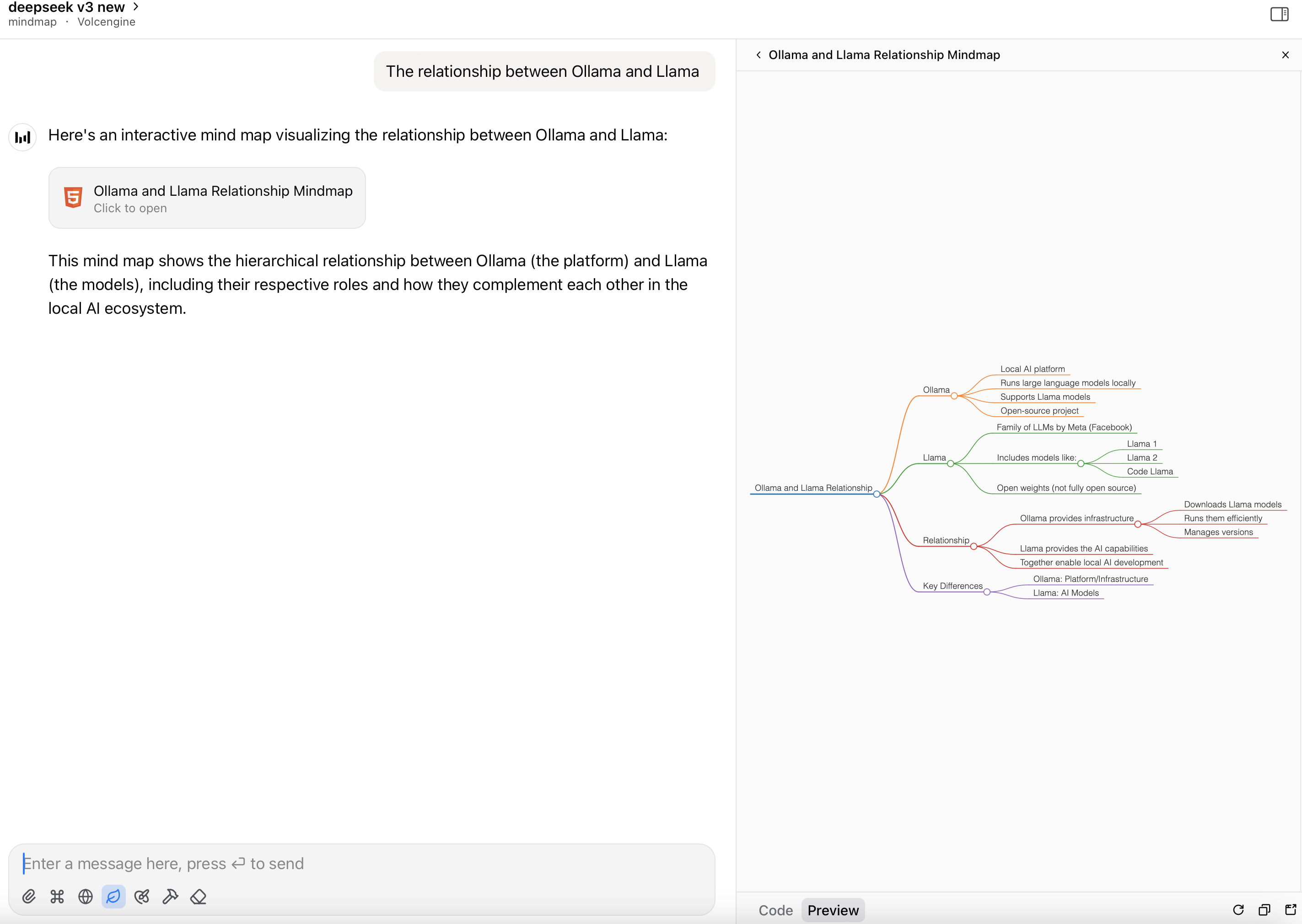
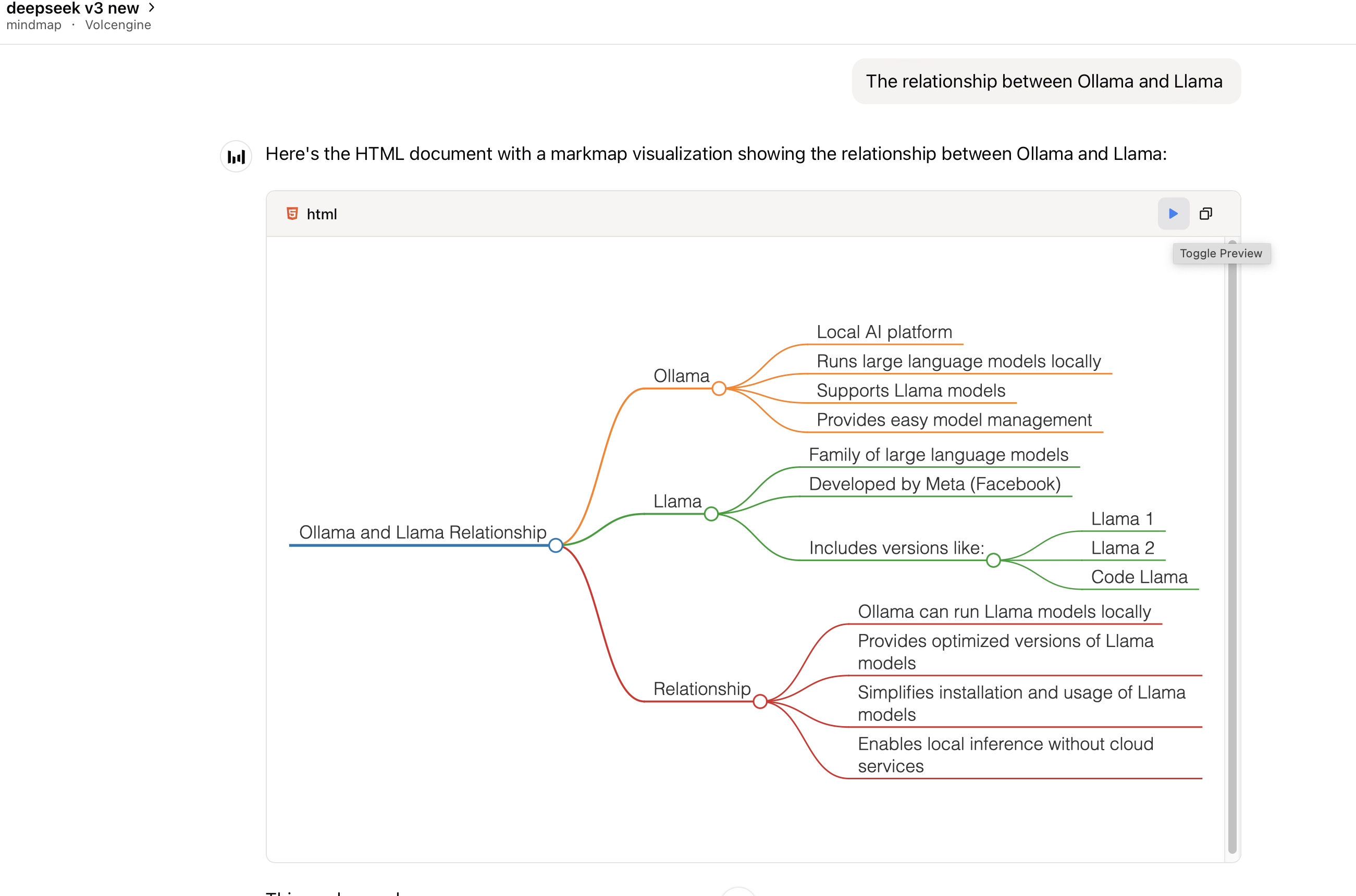
Visualization options: (If formulas or symbols don’t display correctly, download the HTML file and open it in a browser.)
-
View the mindmap in artifacts (if available):
-
Render the HTML file as a mindmap:
Prerequisites
This package requires Node.js to be installed when using command python or uvx to run the server.
Usage
With Claude Desktop or other MCP clients
Add this server to your claude_desktop_config.json:
using `uvx`:
{
  "mcpServers": {
    "mindmap": {
      "command": "uvx",
      "args": ["mindmap-mcp-server", "--return-type", "html"]
    }
  }
}
or
recommended:
{
  "mcpServers": {
    "mindmap": {
      "command": "uvx",
      "args": ["mindmap-mcp-server", "--return-type", "filePath"]
    }
  }
}
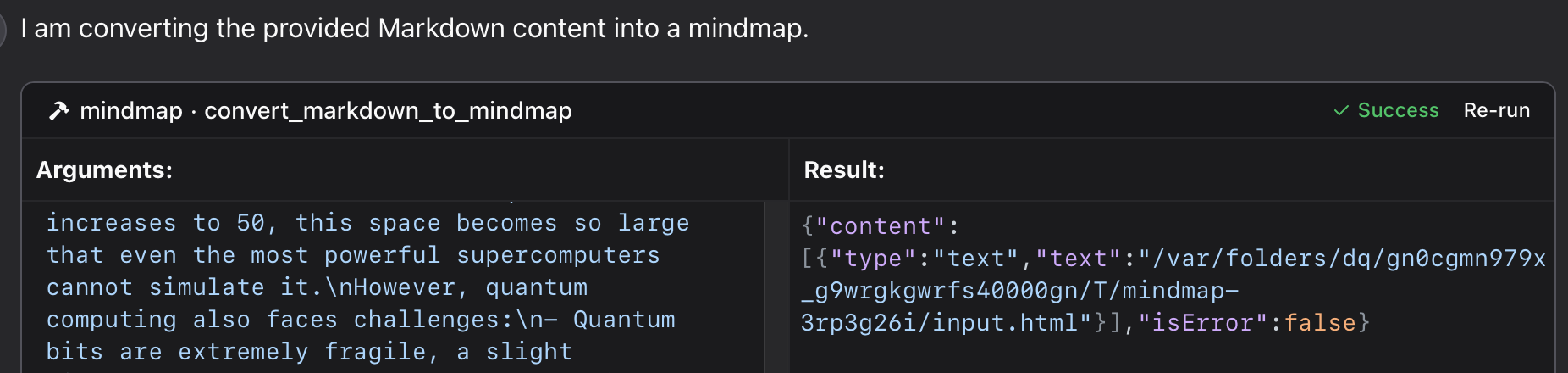
we use --return-type to specify the return type of the mindmap content, you can choose html or filePath according to your needs.
html will return the entire HTML content of the mindmap, which you can preview in your AI client's artifact;
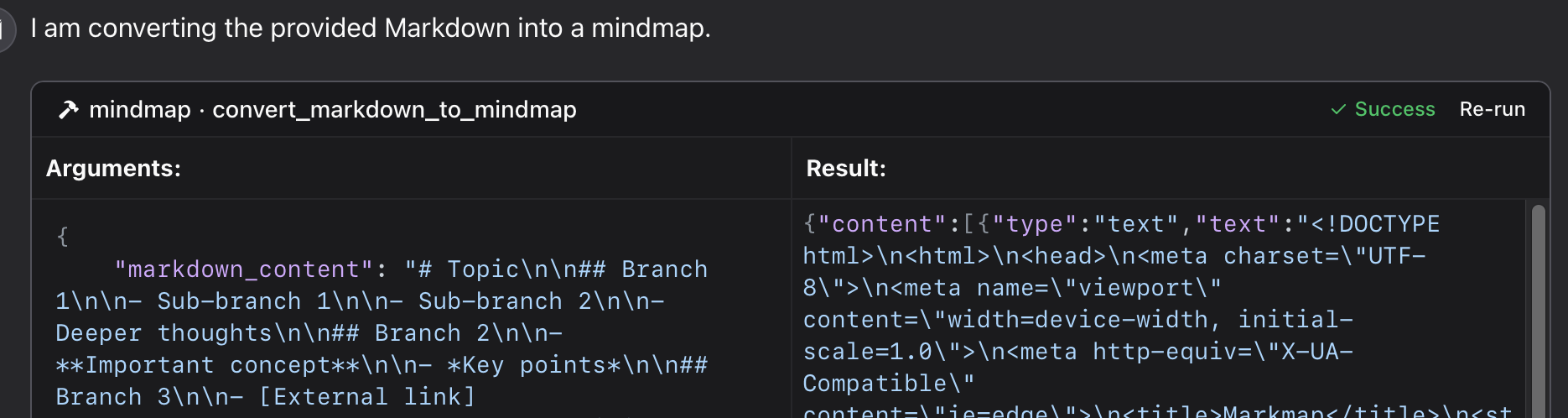
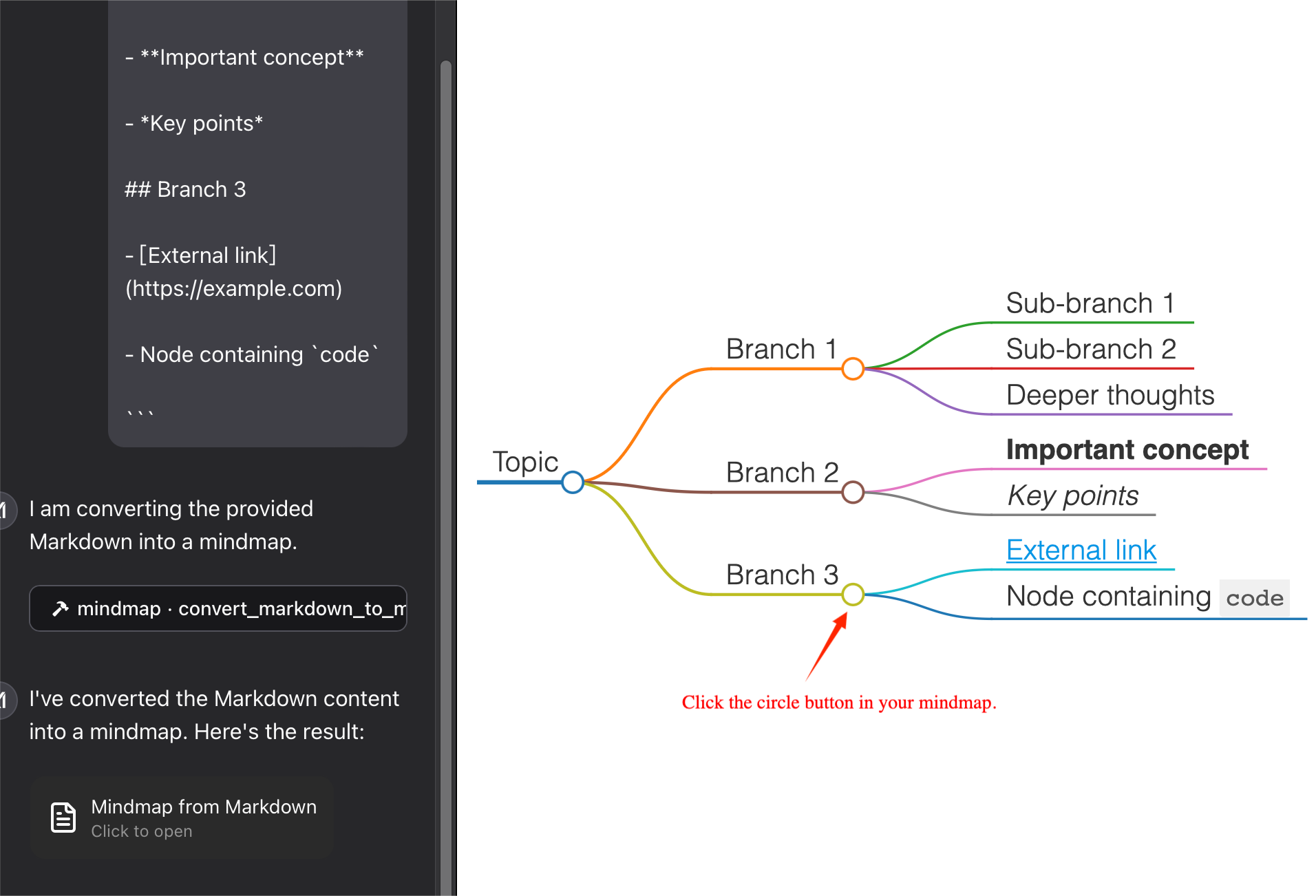
filePath will save the mindmap to a file and return the file path,which you can open in your browser. It can save your tokens !
using `python`:
Using a specific Python file in this repository:
{
  "mcpServers": {
    "mindmap": {
      "command": "python",
      "args": ["/path/to/your/mindmap_mcp_server/server.py", "--return-type", "html"]
    }
  }
}
or
{
  "mcpServers": {
    "mindmap": {
      "command": "python",
      "args": ["/path/to/your/mindmap_mcp_server/server.py", "--return-type", "filePath"]
    }
  }
}
we use --return-type to specify the return type of the mindmap content, you can choose html or filePath according to your needs. see using `uvx` for more details.
using `docker`:
First, you pull the image:
docker pull ychen94/mindmap-converter-mcp
Second, set the server:
{
  "mcpServers": {
    "mindmap-converter": {
      "command": "docker",
      "args": ["run", "--rm", "-i", "-v", "/path/to/output/folder:/output", "ychen94/mindmap-converter-mcp:latest"]
    }
  }
}
⚠️ Replace /path/to/output/folder with an actual path on your system where you want to save mind maps, such as /Users/username/Downloads on macOS or C:\\Users\\username\\Downloads on Windows.
Tools Provided in the docker container The server provides the following MCP tools:
- markdown-to-mindmap-content
Converts Markdown to an HTML mind map and returns the entire HTML content.
You don't use the args:-vand/path/to/output/folder:/outputin the commanddocker.
Parameters:
• markdown (string, required): The Markdown content to convert
• toolbar (boolean, optional): Whether to show the toolbar (default: true)
Best for: Simple mind maps where the HTML content size isn't a concern. And you can use artifact in your AI client to preview the mindmap. - markdown-to-mindmap-file
Converts Markdown to an HTML mind map and saves it to a file in the mounted directory.
Parameters:
• markdown (string, required): The Markdown content to convert
• filename (string, optional): Custom filename (default: auto-generated timestamp name)
• toolbar (boolean, optional): Whether to show the toolbar (default: true)
Best for: Complex mind maps or when you want to save the tokens for later use.
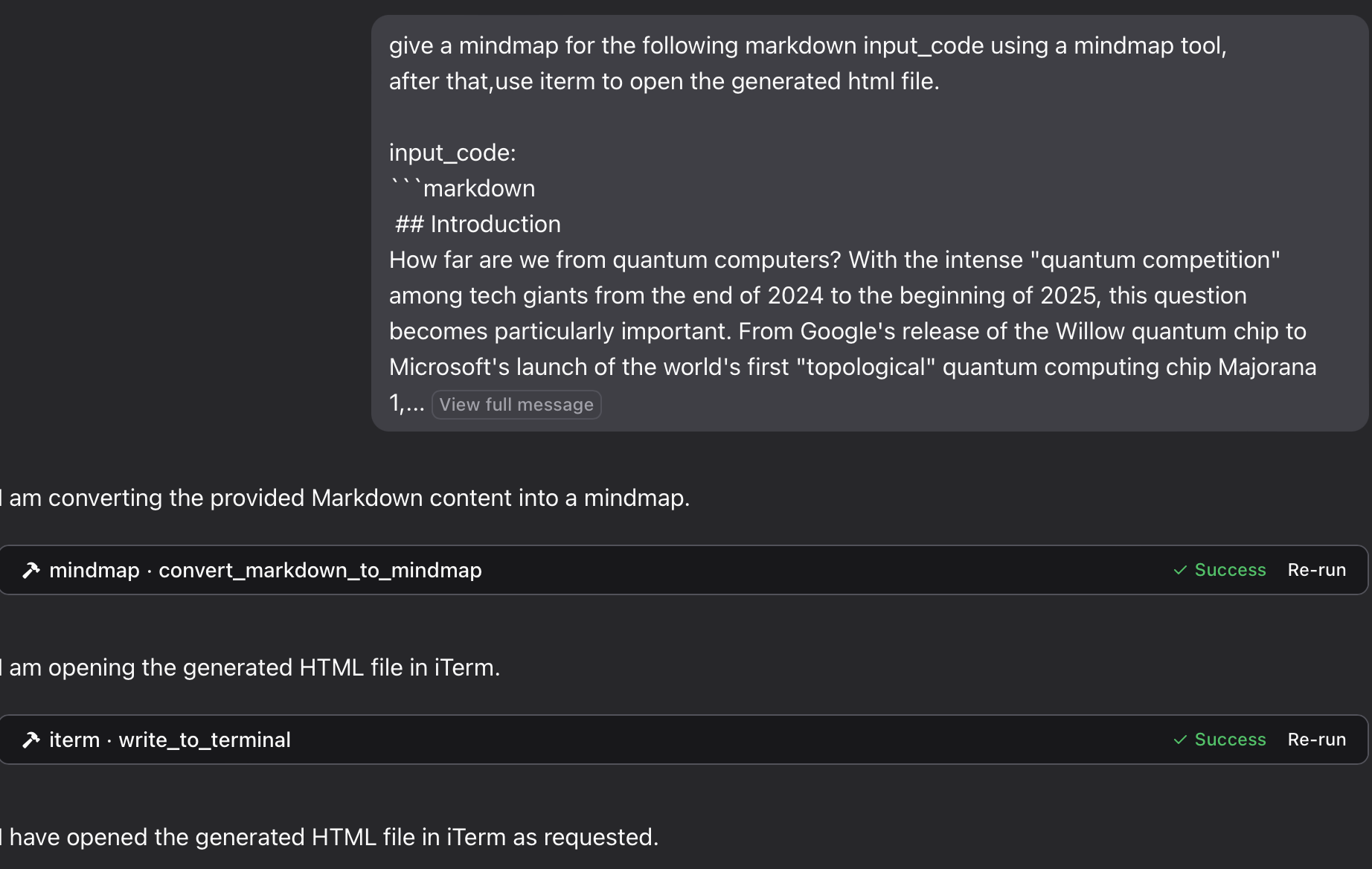
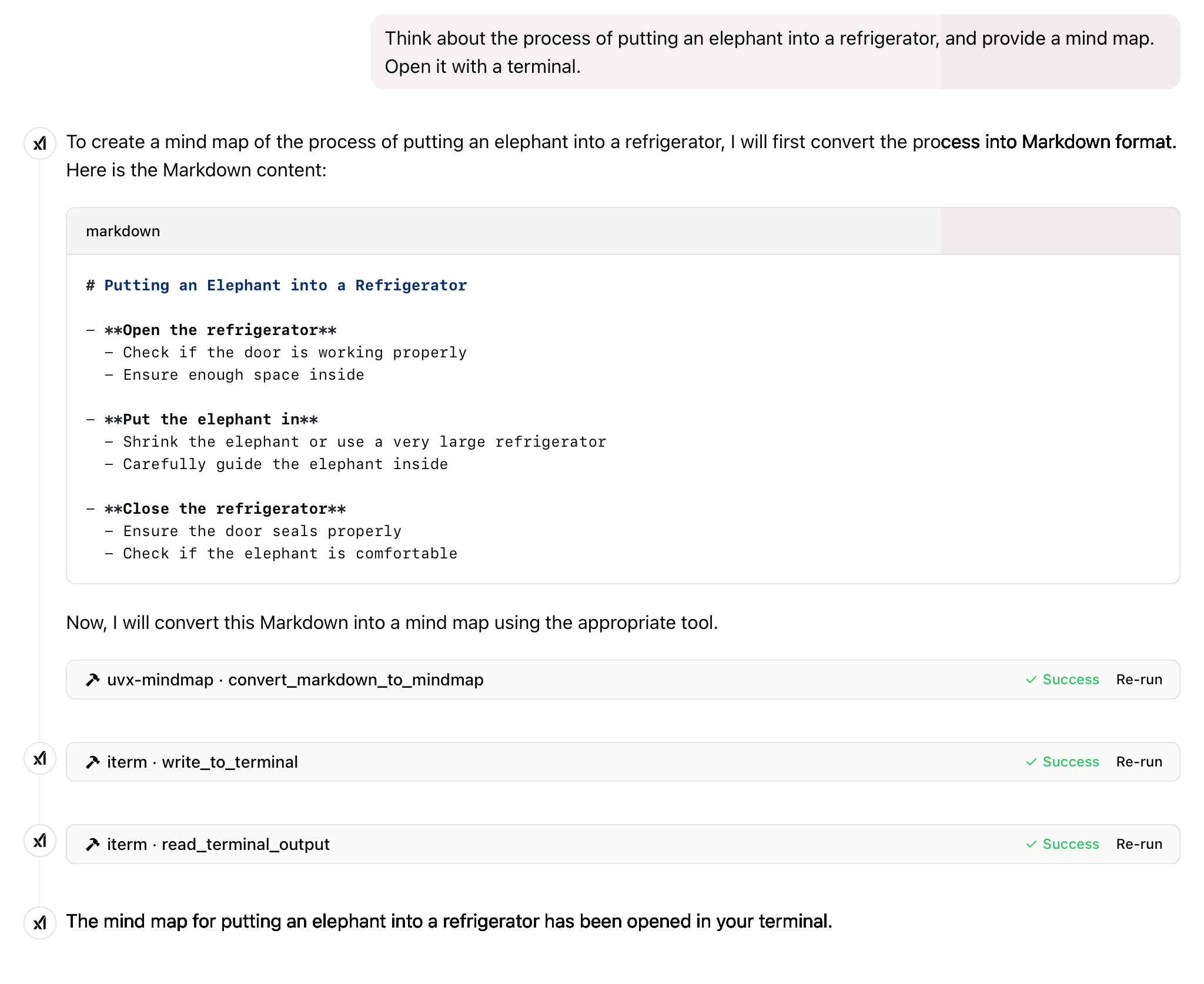
you can open the html file in your browser to view the mindmap. Also you can use the iterm-mcp-server or other terminals' mcp servers to open the file in your browser without interrupting your workflow.
Troubleshooting
File Not Found
If your mind map file isn't accessible:
1 Check that you've correctly mounted a volume to the Docker container
2 Ensure the path format is correct for your operating system
3 Make sure Docker has permission to access the directory
Docker Command Not Found
1 Verify Docker is installed and in your PATH
2 Try using the absolute path to Docker
Server Not Appearing in Claude
1 Restart Claude for Desktop after configuration changes
2 Check Claude logs for connection errors
3 Verify Docker is running
Advanced Usage
Using with Other MCP Clients
This server works with any MCP-compatible client, not just Claude for Desktop. The server implements the Model Context Protocol (MCP) version 1.0 specification.
Features
This server provides a tool for converting Markdown content to mindmaps using the markmap-cli library:
- Convert Markdown to interactive mindmap HTML
- Option to create offline-capable mindmaps
- Option to hide the toolbar
- Return either HTML content or file path
Example
In Claude, you can ask:
"give a mindmap for the following markdown code, using a mindmap tool:
# Project Planning
## Research
### Market Analysis
### Competitor Review
## Design
### Wireframes
### Mockups
## Development
### Frontend
### Backend
## Testing
### Unit Tests
### User Testing
"
if you want to save the mindmap to a file, and then open it in your browser using the iTerm MCP server:
"give a mindmap for the following markdown input_code using a mindmap tool, after that,use iterm to open the generated html file. input_code:
markdown content
"
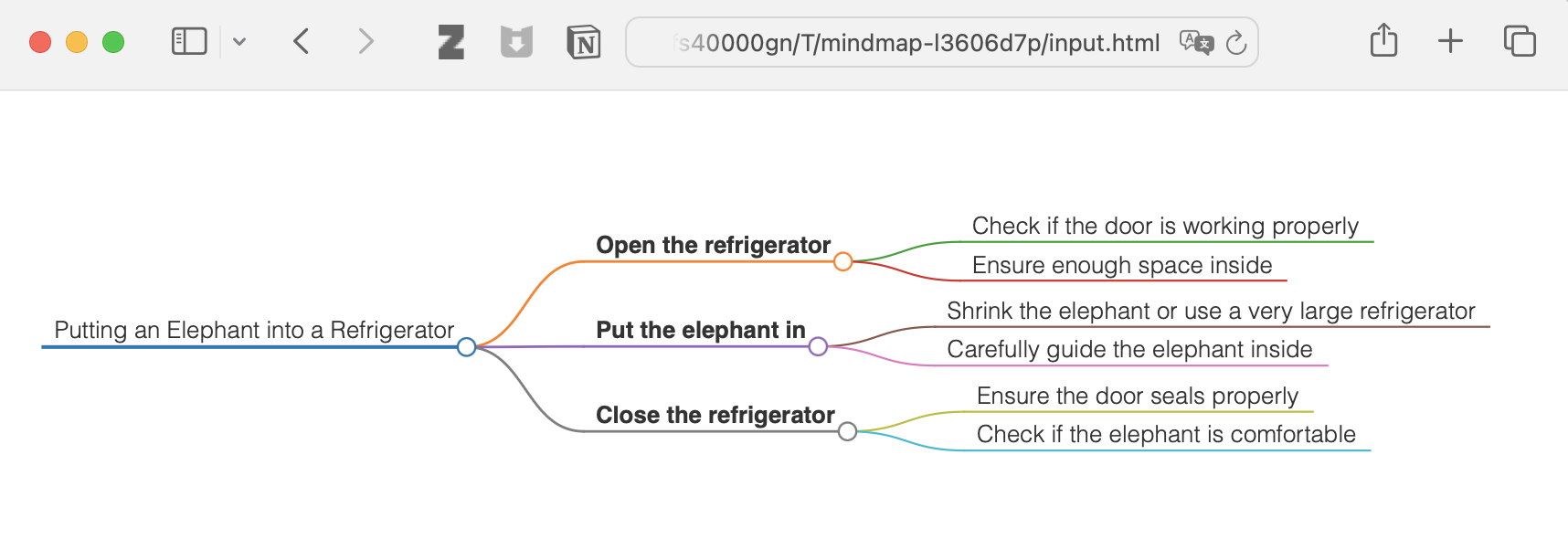
"Think about the process of putting an elephant into a refrigerator, and provide a mind map. Open it with a terminal."
see the result
and more
License
This project is licensed under the MIT License. For more details, please see the LICENSE file in this project repository
If this project is helpful to you, please consider giving it a Star ⭐️
The advancement of technology ought to benefit all individuals rather than exploit the general populace.